Wednesday, July 4, 2012
IncrediControl by Chad0989
IncrediControl
! ROOT is Required !
! Kernel that supports HAVS or SVS voltage adjustment REQUIRED !
Please report any bugs before rating in the market. I am very aggressive with bug fixes. In your bug report please include the name of the KERNEL you are currently using.
This app allows you to control your CPU voltages with an easy to use interface. You can increase or decrease voltages (undervolt or overvolt) for all frequencies or fine tune voltages for each individual frequency.
This version is ad supported. It contains all the features of the Ad Free version. If you would like to support future development of this app, please consider purchasing the ad free version from the market. Alternatively, if you prefer, you can donate on the website (http://www.incredikernel.com). Please register and include your your username in the donation comments and I will give you access to a download page that contains the ad free version to download. There is no miniumum donation amount, you can donate as much or as little as you want and you will have access to the ad free version.

CallRecorder by skvalex

Thursday, June 28, 2012
Tuesday, June 12, 2012
CM7 Transparent Statusbar Center Clock (Windows users)
About:
Well long time ago I created theme called MEIZU and some time ago I created theme MIUI, both uses special statusbar tweaks, but I have noticed that many other themers started to use these tweaks in their themes so I think it's a good idea to open separate topic about it.
What we can do:
enable transparent statusbar
enable tablet buttons
put operator name on statusbar
move clock form right to center on statusbar (idea by Taine0)
enable 2nd image for pulled down statusbar and:
- adjust date
- disable icons
Main window:

1. Browse statusbar tweaks

2. Browse system tweaks

3. Read log

New ideas are welcome
Important:
Remember that some roms needs to install statusbar patch twice, so install patch, reboot (you will lost statusbar), install undo and reboot, then once more install patch, do the last reboot and finally it will work - don't know why that many steps, but tested and works well.
Same for tablet tweaks, but after 1st patch you will get a bootloop, so put off and put it the battery, go to recovery install undo, reboot, install patch again and phone will work like a charm
Download: http://zdune.mod2xtreme.com/android/...ows_by_Z25.zip
Well long time ago I created theme called MEIZU and some time ago I created theme MIUI, both uses special statusbar tweaks, but I have noticed that many other themers started to use these tweaks in their themes
so I think it's a good idea to open separate topic about it.What we can do:
enable transparent statusbar
enable tablet buttons
put operator name on statusbar
move clock form right to center on statusbar (idea by Taine0)
enable 2nd image for pulled down statusbar and:
- adjust date
- disable icons
Main window:
1. Browse statusbar tweaks
2. Browse system tweaks
3. Read log
New ideas are welcome
Important:
Remember that some roms needs to install statusbar patch twice, so install patch, reboot (you will lost statusbar), install undo and reboot, then once more install patch, do the last reboot and finally it will work - don't know why that many steps, but tested and works well.
Same for tablet tweaks, but after 1st patch you will get a bootloop, so put off and put it the battery, go to recovery install undo, reboot, install patch again and phone will work like a charm
Download: http://zdune.mod2xtreme.com/android/...ows_by_Z25.zip
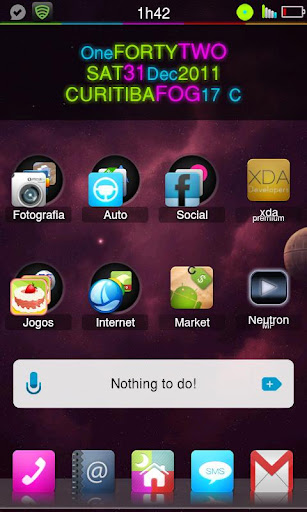
Credit to ZduneX25
Monday, June 11, 2012
Lokifish's HTV Evo "Desktop PC" Demo (UPDATE-CM7 IS A GO!!!)
To make things easier you device needs the following:
The ability to run a CyanogenMod 7 ROM
High resolution video out (HDMI preferred for ease of porting)
The ability to run a CyanogenMod 7 ROM
High resolution video out (HDMI preferred for ease of porting)

I finally finished up the "Desktop" configuration guide showing how to use your Evo as a Desktop PC/Workstation. Above is a pic of what I've been using for close to a month now for everything but site updates. It does have it's quirks but after using it for a while I can over look most of them but the browser still drives me nuts. I also have this up on the FullHDMI website with links. Most of the apps are free but please support devs and purchase the full versions. I you think this is worth it let me know and I'll see if I can set up a donate button.
I'm still looking for a dev to work with on creating a "Desktop UI" web browser preferably based on the stock browser.
Added Bonus: If you use the headphone jack instead of HDMI for audio you end up with a speaker phone!!! I use the headphone jack anyways so I can listen to FM Radio without worrying about bandwidth issues.
My Thanks Go To:
Sam a.k.a orrebmas, for FullHDMI
Full HDMI users, for their thanks and support of all the time and effort that I've put into benchmarking and testing FullHDMI AND HDMwIn
CyanogenMod, for putting mouse and keyboard support in CM7
SavagedZen, for the ONLY AOSP Froyo Kernel with HDMI acceleration
Shinzul and agrabren, for their civility in spite of the, well you know
sbradymobile for making the CM7 mouse patch available
bbradley for the heads up on Splashtop RDP
Future thanks goes to the dev that's willing to help with the "Desktop UI" capable web browsing.
SOFTWARE:
CM7
mouseUpdate20110426v2.zip from HERE
Google Apps
FullHDMI
Custom Keyboard Map
LCDDensity for Root
Null Keyboard
VTL.Launcher (I try to avoid suggesting specific apps but with this I have "desktop" and phone screens all in one)
Documents To Go (Optional but suggested for better file editing)
Splashtop RDP (Supports KB/Mouse, Audio and Video!!!) Try the free demo first.
HARDWARE:
Dell Bluetooth Wireless Keyboard and Mouse Bundle (it's really a Logitech for $30!!!)
HDMI or DVI-D Display
HDMI Cable
(HDMI to DVI adapter for DVI displays)
EVO DESKTOP SETUP GUIDE
Make sure you have the things on the Desktop Configuration list before starting. Now lets get started!
1: Use Titanium Backup to backup all your apps then do a full backup via Rom Manager.
2: Do a full wipe and install the CM7, GApps and the mouseUpdate_signed.zip.
3: Go through your regular inital setup and restore your apps.
4: Install FullHDMI if not already installed and the rest of the apps.
5:
6: Using Root Explorer navigate to system/usr/keylayout and rename qwerty.kl to qwerty.kl.bak
7: Extract the qwerty.zip and using Root Explorer copy the new qwerty.kl file to system/usr/keylayout. Set the qwerty.kl file permissions to User:read/write, Group:read, Others:read.
8: Reboot.
9: BT Mouse Pairing:
A: Go into the phone's Bluetooth settings and turn on Bluetooth. Select "Scan for Devices".
B: On the bottom of the mouse is a power switch and a pairing button. Turn on the mouse and hold down
the pairing button for 2 seconds.
C: When the mouse shows up in the device list select it. A popup asking if you want to pair and connect
will show up. Select the option. After a couple seconds your phone should say that it is paired and
connected to the mouse. It may take a little bit for the pointer to show up and may be sluggish, just
give it a few seconds and it will be ok.
10: Keyboard Pairing (This one's a little tricky)
A: Go into the phone's Bluetooth settings and turn on Bluetooth. Select "Scan for Devices".
B: On the bottom of the keyboard is a power switch and a pairing button. Turn on the keyboard and hold
down the pairing button for 2 seconds.
C: When the keyboard shows up in the device list select it. A popup asking if you want to pair and connect
will show up. Select the option.
D: After a couple seconds your phone will ask for a pin code, enter what any four digit number but
remember what the number is.
E: On the keyboard press and hold the left "Windows" key and F2 at the same time for about a second.
Immediately afterwards, using the number keys and not the number pad, enter the four digit number that
you entered on your phone and hit the "Enter" key. The BT indicator should stop blinking and flash solid
then go out. Your keyboard should then be paired.
USING YOUR EVO AS A DESKTOP
Here we will cover how to use your Evo as a desktop computer. First I will go over the keyboard and it's functions. The image below is the new keymap assigned to the keyboard. The red areas are keys that I was unable to map (trying to map them broke ALL keys including the ones on the phone) as they need new key assignments written to the ROM. The yellow areas are keys that are unmapped or I haven't remapped yet. The green is the newly mapped keys. I do have an image of the keyboard with the scan codes on it if someone would like to give additional mapping a try. Moving along....

1: Go to Settings / Applications / Development and enable "Stay Awake". This will prevent your EVO from sleeping
while connected to a charger and believe me you'll want to have your EVO on a charger when using it as a
desktop.
2: If you are using an overclocking app that has profiles, make sure you have a "Max Performance" profile while
charging in place. You can use dynamic clocking but it has a serious effect on performance unless properly
tuned for "Desktop" use.
3:
4: Using LCDDensity for Root, set your display density to 180 and click apply. Your phone will fast reboot and
when done everything on your display will be smaller.
5: Turn on your keyboard and mouse and then turn on Bluetooth on your EVO. Your keyboard and mouse should
connect after a little bit but I have found tapping on the space bar and mouse buttons seems to help.
6: (Optional) Launch Android Seven for a desktop like UI.
7: Connect your EVO to your charger and display and enable FullHDMI.
8: Long press any text input and change "Input Methed" to Null Keyboard
9: Surf the web and have some fun.
I know this may seem like a lot of steps however after the initial setup it's gets much easier. It would go something like this; Set LCDDensity, turn on BT, connect phone to charger and display and launch FullHDMI. This takes only a minute or two and will probably be up and running before most PC's. Now for the bug list...
Known Bugs and Quirks:
Mouse wheel selects from side to side not up and down like normal. Nobody has been able to fix this and seeing that CM7 is out it's most likely will not be.
Left mouse click and drag scrolling.
The already mentioned keymapping. I'll keep playing with this to see if I can get a better keymap without have to add additional scan codes to the ROM.
Razer Orochi bluetooth mouse left click not working properly (not sure if it's the mouse or HID. Added anyway to cover all the bases. Thanks herrerarivera for the info)
Friday, June 8, 2012
Revolution Theme - CM7 theme (HDPI+M/LDPI)

There are a few things I need to tweak, but I thought I'd just get it released.
If anyone wants to port it to MDPI, be my guest. MDPI/LDPI version can be found here I haven't tested it, so let me know!
----------- MDPI Version can be found here credits to amri----------
Massive credits goto jasonevil, zdunex25, all the free to use image PSDs out there! v-Xemnes label theme, Tjdyo for his iphone theme. more that i've probably forgotten :/
There are a few bugs out there, still some orange things hanging around that I need to change. You really need to have a transparent status bar to use this Theme to it's full effect and use zdunex25's notification xml change app. (i'll post the link later.)
Chargebar is used for the battery status and battery icon is switched off in CM7 settings. 360 modified launcher is the launcher too.
You can download it here
or in the attatched.
Let me know what you think.
Edit: To address some peoples issues, this theme will be mainly orange if you're on MDPI, I have not modified this theme for MDPI phones. I may get round to it, but It will be orange.
----
To fix deskclock issues use the fix found here
----
The launcher used is my own version of 360 launcher which you can download here
If anyone wants to port it to MDPI, be my guest. MDPI/LDPI version can be found here I haven't tested it, so let me know!
----------- MDPI Version can be found here credits to amri----------
Massive credits goto jasonevil, zdunex25, all the free to use image PSDs out there! v-Xemnes label theme, Tjdyo for his iphone theme. more that i've probably forgotten :/
There are a few bugs out there, still some orange things hanging around that I need to change. You really need to have a transparent status bar to use this Theme to it's full effect and use zdunex25's notification xml change app. (i'll post the link later.)
Chargebar is used for the battery status and battery icon is switched off in CM7 settings. 360 modified launcher is the launcher too.
You can download it here
or in the attatched.
Let me know what you think.
Edit: To address some peoples issues, this theme will be mainly orange if you're on MDPI, I have not modified this theme for MDPI phones. I may get round to it, but It will be orange.
----
To fix deskclock issues use the fix found here
----
The launcher used is my own version of 360 launcher which you can download here
Credit to Taine0
Thursday, May 3, 2012
HTC EVO Euroskank Kangs CM7.2
UPDATE FOR THE INFAMOUS CM7.2
2 NEWER VERSIONS CAN BE FOUND HERE
http://fitsnugly.euroskank.com/gigglebread/?id=supersonic
INSTALLATION
1. WIPE DALVIK
2. FLASH ROM
3. REBOOT
*Do a full wipe (Data, cache, and Dalvik) if coming from a Sense ROM). Just makes things easier.
LATEST GAPPS -http://wiki.cyanogenmod.com/wiki/Latest_Version/Google_Apps
*BE SURE TO DOWNLOAD THE 1 FOR CYANOGENMOD 7*
You can follow the Creator on twitter @FuZZ_

2 NEWER VERSIONS CAN BE FOUND HERE
http://fitsnugly.euroskank.com/gigglebread/?id=supersonic
INSTALLATION
1. WIPE DALVIK
2. FLASH ROM
3. REBOOT
*Do a full wipe (Data, cache, and Dalvik) if coming from a Sense ROM). Just makes things easier.
LATEST GAPPS -http://wiki.cyanogenmod.com/wiki/Latest_Version/Google_Apps
ICS CM7 THEME https://play.google.com/store/apps/details?id=com.sonny.theme.ics
ADW FAENZA THEME https://play.google.com/store/apps/details?id=ginlemon.adw.faenza&feature=search_result#?t=W251bGwsMSwxLDEsImdpbmxlbW9uLmFkdy5mYWVuemEiXQ..
ADW FAENZA THEME https://play.google.com/store/apps/details?id=ginlemon.adw.faenza&feature=search_result#?t=W251bGwsMSwxLDEsImdpbmxlbW9uLmFkdy5mYWVuemEiXQ..
*BE SURE TO DOWNLOAD THE 1 FOR CYANOGENMOD 7*
You can follow the Creator on twitter @FuZZ_

Subscribe to:
Posts (Atom)