Showing posts with label HDMI. Show all posts

Friday, December 14, 2012

Master collection of accessories for the Evo LTE

Cases/Holsters
Heavy Duty
Otterbox Series: ├XDA Discussion┤├OtterBox
-Defender ├Best Buy┤├OtterBox

-Commuter ├Ebay┤├OtterBox

Seidio Series: SeidioOnline.com
-Seidio Platinum ├XDA Discussion┤├Best Buy


-Surface ├Case Only┤├Combo with holster

-Active ├Case only┤├Combo with holster

-Convert Combo ├XDA Discussion┤├SeidioOnline.com

-Naked phone holster ├SeidioOnline.com

Ventev: ├Ventev.com

-Edge ├XDA Discussion
Case + Holster Black

Case + Holster Red

Case + Holster White


TPU
CruzerLite: ├XDA Discussion - 2┤├CruzerLite.com
Diztronic: ├XDA Discussion┤├tpu-cases.com

-Matte Black ├XDA Discussion┤├Amazon┤├TPU-Cases


Other
CaseMate Pop2: ├XDA Discussion┤├Amazon

Body Glove: ├Teesco.com
-Tactic ├XDA Discussion┤├Ebay┤├Tessco
RocketFish SoftCase:XDA Discussion┤ ├RocketFish


Screen/Body Protectors
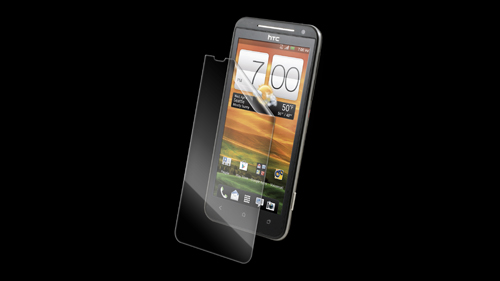
Zagg InvisibleSHIELD: ├XDA Discussion┤├Zagg.com

-InvisibleSHIELD ├Zagg.com
-InvisibleSHIELD HD ├Best Buy┤ NOTE: There are reports of these covers being misaligned and messing with the proximity sensor. Zagg knows and are making adjustments to their product.
XOSkins ├GNex XDA Discussion┤├XOSkins.com

-Full Body ├XOSkins.com
Seidio: ├Seidio.com

Skinomi: ├Skinomi.com

Steinheil: ├XDA Discussion┤├Spigen


Media Devices
HTC Media Link HD: ├XDA Discussion┤├HTC
HTC Stereo Clip: ├HTC


Bluetooth Devices
Samsung Bluetooth Stereo Headset: ├Samsung

TuneLink Auto: ├NewPotatoTech


Docks
Sprint Car Dock: ├XDA Discussion┤├Sprint

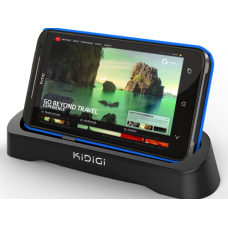
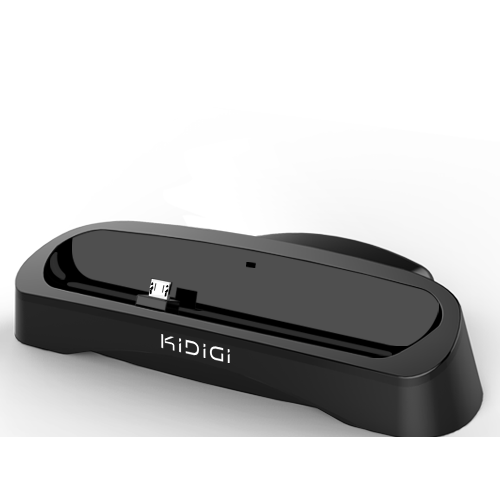
HDMI Desktop Cradle ├4u-mobi.com

USB Cradle ├4u-mobi.com


Miscellaneous
NFC Tags: ├XDA Discussion
Lots of everything: ├HandHeldItems.com

Monday, June 11, 2012

Lokifish's HTV Evo "Desktop PC" Demo (UPDATE-CM7 IS A GO!!!)


To make things easier you device needs the following:
The ability to run a CyanogenMod 7 ROM
High resolution video out (HDMI preferred for ease of porting)


I finally finished up the "Desktop" configuration guide showing how to use your Evo as a Desktop PC/Workstation. Above is a pic of what I've been using for close to a month now for everything but site updates. It does have it's quirks but after using it for a while I can over look most of them but the browser still drives me nuts. I also have this up on the FullHDMI website with links. Most of the apps are free but please support devs and purchase the full versions. I you think this is worth it let me know and I'll see if I can set up a donate button.

I'm still looking for a dev to work with on creating a "Desktop UI" web browser preferably based on the stock browser.

Added Bonus: If you use the headphone jack instead of HDMI for audio you end up with a speaker phone!!! I use the headphone jack anyways so I can listen to FM Radio without worrying about bandwidth issues.

My Thanks Go To:
Sam a.k.a orrebmas, for FullHDMI
Full HDMI users, for their thanks and support of all the time and effort that I've put into benchmarking and testing FullHDMI AND HDMwIn
CyanogenMod, for putting mouse and keyboard support in CM7
SavagedZen, for the ONLY AOSP Froyo Kernel with HDMI acceleration
Shinzul and agrabren, for their civility in spite of the, well you know
sbradymobile for making the CM7 mouse patch available
bbradley for the heads up on Splashtop RDP

Future thanks goes to the dev that's willing to help with the "Desktop UI" capable web browsing.

SOFTWARE:
CM7 
mouseUpdate20110426v2.zip from HERE
Google Apps
FullHDMI
Custom Keyboard Map
LCDDensity for Root
Null Keyboard
VTL.Launcher (I try to avoid suggesting specific apps but with this I have "desktop" and phone screens all in one) 
Documents To Go (Optional but suggested for better file editing)
Splashtop RDP (Supports KB/Mouse, Audio and Video!!!) Try the free demo first.

HARDWARE:
Dell Bluetooth Wireless Keyboard and Mouse Bundle (it's really a Logitech for $30!!!)
HDMI or DVI-D Display
HDMI Cable
(HDMI to DVI adapter for DVI displays)

EVO DESKTOP SETUP GUIDE

Make sure you have the things on the Desktop Configuration list before starting. Now lets get started!

1: Use Titanium Backup to backup all your apps then do a full backup via Rom Manager.

2: Do a full wipe and install the CM7, GApps and the mouseUpdate_signed.zip.

3: Go through your regular inital setup and restore your apps.

4: Install FullHDMI if not already installed and the rest of the apps.

5:

6: Using Root Explorer navigate to system/usr/keylayout and rename qwerty.kl to qwerty.kl.bak

7: Extract the qwerty.zip and using Root Explorer copy the new qwerty.kl file to system/usr/keylayout. Set the qwerty.kl file permissions to User:read/write, Group:read, Others:read.

8: Reboot.

9: BT Mouse Pairing:
A: Go into the phone's Bluetooth settings and turn on Bluetooth. Select "Scan for Devices".
B: On the bottom of the mouse is a power switch and a pairing button. Turn on the mouse and hold down
the pairing button for 2 seconds.
C: When the mouse shows up in the device list select it. A popup asking if you want to pair and connect
will show up. Select the option. After a couple seconds your phone should say that it is paired and
connected to the mouse. It may take a little bit for the pointer to show up and may be sluggish, just
give it a few seconds and it will be ok.

10: Keyboard Pairing (This one's a little tricky)
A: Go into the phone's Bluetooth settings and turn on Bluetooth. Select "Scan for Devices".
B: On the bottom of the keyboard is a power switch and a pairing button. Turn on the keyboard and hold
down the pairing button for 2 seconds.
C: When the keyboard shows up in the device list select it. A popup asking if you want to pair and connect
will show up. Select the option.
D: After a couple seconds your phone will ask for a pin code, enter what any four digit number but
remember what the number is.
E: On the keyboard press and hold the left "Windows" key and F2 at the same time for about a second.
Immediately afterwards, using the number keys and not the number pad, enter the four digit number that
you entered on your phone and hit the "Enter" key. The BT indicator should stop blinking and flash solid
then go out. Your keyboard should then be paired.


USING YOUR EVO AS A DESKTOP

Here we will cover how to use your Evo as a desktop computer. First I will go over the keyboard and it's functions. The image below is the new keymap assigned to the keyboard. The red areas are keys that I was unable to map (trying to map them broke ALL keys including the ones on the phone) as they need new key assignments written to the ROM. The yellow areas are keys that are unmapped or I haven't remapped yet. The green is the newly mapped keys. I do have an image of the keyboard with the scan codes on it if someone would like to give additional mapping a try. Moving along....


1: Go to Settings / Applications / Development and enable "Stay Awake". This will prevent your EVO from sleeping
while connected to a charger and believe me you'll want to have your EVO on a charger when using it as a
desktop.

2: If you are using an overclocking app that has profiles, make sure you have a "Max Performance" profile while
charging in place. You can use dynamic clocking but it has a serious effect on performance unless properly
tuned for "Desktop" use.

3: 

4: Using LCDDensity for Root, set your display density to 180 and click apply. Your phone will fast reboot and
when done everything on your display will be smaller.

5: Turn on your keyboard and mouse and then turn on Bluetooth on your EVO. Your keyboard and mouse should
connect after a little bit but I have found tapping on the space bar and mouse buttons seems to help.

6: (Optional) Launch Android Seven for a desktop like UI.

7: Connect your EVO to your charger and display and enable FullHDMI.

8: Long press any text input and change "Input Methed" to Null Keyboard

9: Surf the web and have some fun.


I know this may seem like a lot of steps however after the initial setup it's gets much easier. It would go something like this; Set LCDDensity, turn on BT, connect phone to charger and display and launch FullHDMI. This takes only a minute or two and will probably be up and running before most PC's. Now for the bug list...


Known Bugs and Quirks:

Mouse wheel selects from side to side not up and down like normal. Nobody has been able to fix this and seeing that CM7 is out it's most likely will not be.

Left mouse click and drag scrolling.

The already mentioned keymapping. I'll keep playing with this to see if I can get a better keymap without have to add additional scan codes to the ROM.

Razer Orochi bluetooth mouse left click not working properly (not sure if it's the mouse or HID. Added anyway to cover all the bases. Thanks herrerarivera for the info)

Thursday, November 24, 2011

TeamWIN HDMI Mirroring Demo 1 & 2 on HTC EVO 4G

TeamWIN presents the the first hi-def video of HDMI Mirroring on CM7. This is a full team effort, and we look forward to bringing it into CM7. This is being shown on a 145" projection. Please ignore the pizza boxes. :) EVO is delivering 720p video 50fps.
Ask, and you shall receive... LANDSCAPE!

TeamWIN presents the the second hi-def video of HDMI Mirroring on CM7. This is a full team effort, and we look forward to bringing it into CM7. This is being shown on a 145" projection. Please ignore the pizza boxes. :) EVO is delivering 720p video 50fps.

Special kudos go to the game creators for an amazing game, which I haven't played much of yet (as you can tell by my incompetence at it)

HDMwIn Gingerbread Alpha Build


You read the title correctly.

HDMwIn now supports HDMI out on gingersense. Congrats to TeamWin for this fine release. I have been waiting for HDMI out support for a while.
Originally Posted by agrabren  View Post
The Alpha kernel is now available from Kernel Manager! Give it a test drive!

(Sense only)

We'll be porting the whole re-architecture over to CM7. Not gonna leave AOSP out to dry!
http://forum.xda-developers.com/show...postcount=1850

This new kernel is a complete rewrite of the app. The functionality is now fully automatic and no longer requires a separate app. The team has said they do plan on releasing an App to allow those who wish to tinker with settings to do so, but otherwise, a seperate app is unneeded. Gone are the daemon downloader loops.

More indepth information is available here:
http://www.androidcentral.com/androi...ead-first-look
How long did it take you to perfect HDMwIn for Gingerbread?

I've spent over 100 hours getting all the little details right and all the algorithms working smoothly. I anticipate another 10-20 hours until all the wrinkles are fixed.

So HDMI just outputs on its own? The user doesn't need to do anything?

Exactly. The user plugs in the HDMI cable, and it just works. The user is welcome to make adjustments via the UI, but there's generally no need. But there will always be someone who is fussy and wants it to lock rotation, change scaling or modify the overscan defaults.

Did there not used to be auto-rotation? And does auto-rotation work for everything? I noticed it worked in both Nova and the YouTube app.

There was a rudimentary version of auto-rotation in old builds, but that required the UI to read the sensors. This consumed massive amounts of battery, and performed poorly. This new method requires no extra power, and offers a smoother experience to the user. Any application which natively handles rotation (either fixed, like Nova, or dynamic, like Messages) will work out-of-the-box. As for YouTube, YouTube isn't mirroring. It uses native HDMI support for Gallery videos and YouTube videos. That was one of the great new features. You no longer need to disable mirroring to use YouTube. It switches automatically.

You mentioned there's now YouTube app support. Is there also support for videos played in the browser app?

Only the YouTube app and Gallery app support HDMI out-of-the-box from HTC. So when those apps run, you'll have different output on your TV from your device. If you're playing video (or anything else) on the device in a player which doesn't natively handle the EVO's HDMI port, you'll get full mirroring. If the app is HDMI-aware, you'll get the app's intended behavior.

Are there any performance enhancements in the new HDMwIn? How are the scrolling speeds compared to the previous version?

We're using the same "Silky Johnson" technology which drove our previous accelerated kernels, so we're seeing the same smooth responsiveness and performance. Because we now do aspect scaling a little more accurately, it's possible the GPU isn't quite as taxed as before, but we haven't felt a noticeable difference. The device no longer has a polling loop running in the background, so that helps battery life and performance as well.

You mentioned there's a custom kernel involved. What kind of features does this kernal support? Are other kernals supported?

I always build our new features directly on top of the HTC kernels. Once we release the kernel and source code, we work with other kernel developers to get our code integrated into their kernels. This kernel has all the latest EDID fixes (for people who would plug in a TV and have the phone immediately crash) as well as the HDMI mirroring.
Video Preview available here:
http://www.youtube.com/watch?v=gu7OV...layer_embedded

Warning!!
The kernel has been released on Kernel Manager. This is a free app available on Android Market. Before installing this kernel, please nandroid your phone. This is an alpha kernel. There may be instabilities and other issues. Be aware that installing this kernel will override any other custom/stock kernel you may have installed. You will lose the abilities of those kernels (such as overclocking, HAVs, etc.). This requires root. Do NOT use this kernel with an ASOP rom (MIUI, CM7, etc.). An ASOP version is coming according to the devs.

How to install:
Apparently, kernel manager has issues with the HDMwIn kernel, so please flash from recovery manually instead.
- Run Kernel Manager and approve the superuser request.
- Press menu and select 'Advanced Options'. Ensure 'Flash automatically' isn't checked.
- Select Load Kernel List.
- Scroll to the bottom of the list.
- Select PoonSense 2.3.3.
- Press Download + Flash Kernel.
- Using a file manager, navigate to root of SD card. sdcard/kernel-manager/agrabren contains a .zip file callled "2.3.3-1-793-HDMwIn-Sense233-Alpha-signed.zip". That file is also attached to this thread.
- Move that .zip file to the root of your SD
- Reboot into recovery
- Wipe cache and dalvik cache.
- Flash the .zip file.
- Reboot
- Enjoy HDMwIn.

Also, agrabren has updated his kernel due users having issues with blank screens. If you guys are having issues, please use his newest kernel: build 793. That version is now available on Kernel Manager and attached to this thread.
http://forum.xda-developers.com/show...postcount=1864

Old method of install. Causes Wifi errors and other bugs, use alternative method above.
How to install:
- Install Kernel Manager from Market
- Run Kernel Manager and approve the superuser request.
- Press menu and select 'Advanced Options'. Ensure 'Clear Cache' and 'Clear Dalvik Cache' are checked.
- Select Load Kernel List.
- Scroll to the bottom of the list.
- Select PoonSense 2.3.3.
- Press Download+ Flash Kernel.
- After the reboot, enjoy HDMI mirroring. There is no app to start or configure. It just works now. Plug in an HDMI cable and you are good to go.